
Published on 10-11-2025 Digital Forensics, Mobile Security
Introduction
In an era where mobile devices contain our most sensitive personal and professional data, ensuring their security is paramount. The Mobile Verification Toolkit (MVT) is an open-source tool developed by Amnesty International’s Security Lab that helps you forensically analyze iOS and Android devices for signs of compromise.
In this comprehensive guide, I’ll walk you through using MVT step by step to scan your mobile device backups for malware and spyware.
What is MVT?
MVT is a collection of utilities designed to:
- Extract forensic information from iOS/Android devices
- Decrypt iOS backups
- Check for known Indicators of Compromise (IOCs)
- Identify potential spyware like Pegasus, Hermit, and others
Prerequisites
Before we begin, ensure you have:
- A computer running Windows, macOS, or Linux
- Python 3.7+ installed
- Your mobile device and USB cable
- Basic terminal/command line knowledge
Step 1: Installation
Method A: Using pip (Recommended)
bash
# Install MVT globally
pip install mvt

# Or install in virtual environment (better for isolation)
python3 -m venv mvt-env
source mvt-env/bin/activate
pip install mvt

Method B: From Source
bash
git clone https://github.com/mvt-project/mvt.git
cd mvt
pip install .
Verify installation:
bash
mvt-ios --version
mvt-android --version
Step 2: Creating Device Backups
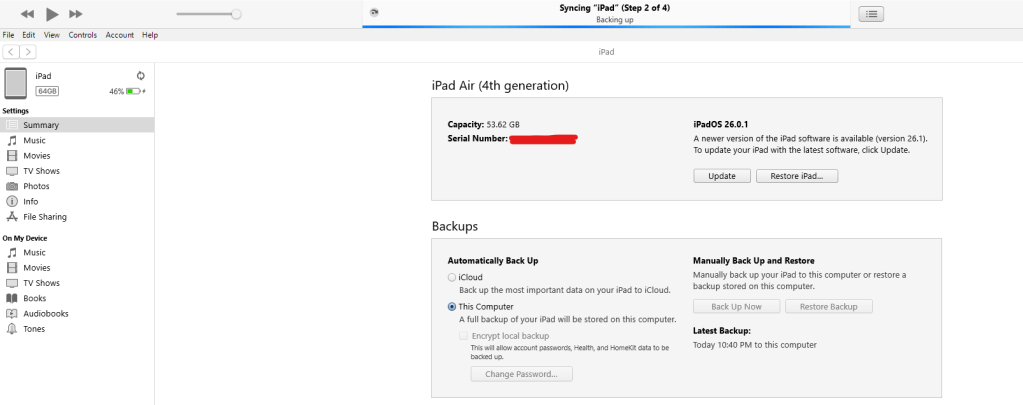
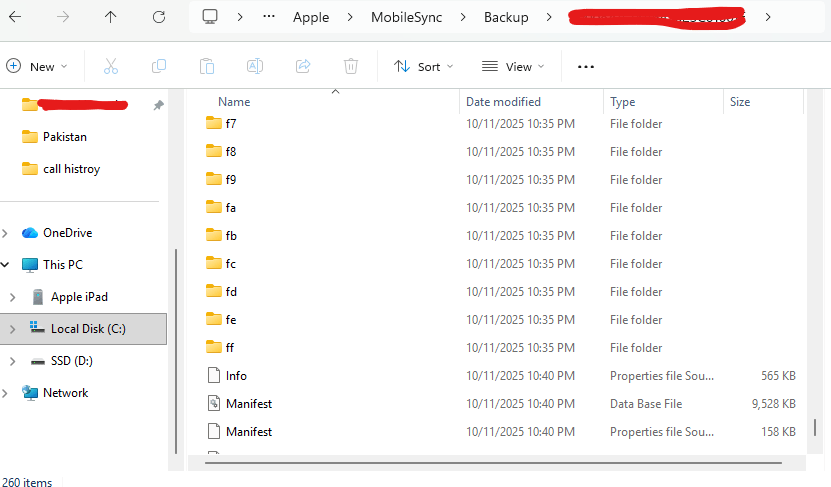
For iOS Users:
Option A: iTunes/Finder Backup
- Connect your iPhone/iPad to computer
- Open iTunes (Windows) or Finder (macOS)
- Select your device
- Click “Back Up Now”
- Important: Do NOT check “Encrypt local backup” if you want to scan without password
Option B: iMazing (Third-party)
- Download iMazing (more flexible backup options)
- Create unencrypted backup
For Android Users:
bash
# Create full backup via ADB
adb backup -all -f android_backup.ab

# Or use third-party tools like Oxygen Forensics
Step 3: Locating Your Backup Files
iOS Backup Locations:
- Windows:
C:\Users\[Username]\AppData\Roaming\Apple Computer\MobileSync\Backup\ - macOS:
~/Library/Application Support/MobileSync/Backup/
Quick Search Method:
bash
# Windows
dir /s %USERPROFILE%\*Manifest.db*

# macOS/Linux
find ~ -name "Manifest.db" 2>/dev/null
Step 4: Downloading Threat Intelligence
For best detection rates, download IOCs:
bash
# Download all available IOCs
mvt-ios download-iocs --output ./iocs/

# Or download specific sources
mvt-ios download-iocs --output ./iocs/ --amnesty
Step 5: Running the Scan
Basic iOS Backup Scan:
bash
# Replace with your actual backup path
mvt-ios check-backup /path/to/your/backup/ --output ./scan_results/
Scan with IOCs:
bash
mvt-ios check-backup /path/to/your/backup/ --output ./scan_results/ --iocs ./iocs/
For Encrypted Backups:
bash
# Decrypt first
mvt-ios decrypt-backup /encrypted/backup/ /decrypted/backup/

# Then scan decrypted version
mvt-ios check-backup /decrypted/backup/ --output ./scan_results/
Android Scan:
bash
mvt-android check-backup /path/to/android/backup/ --output ./android_results/
Step 6: Interpreting Results
Understanding the Output:
Clean Scan:
text
INFO: No known malware IOCs detected
INFO: Extracted 150 contacts, 45 apps, 2000+ browsing records
Potential Issues:
WARNING: Suspicious process foundDETECTION: Known malware signature matchedSUSPICIOUS: Unusual system modification
Key Files to Examine:
results.json– Raw data in JSON formatindex.html– Visual reportlog.txt– Detailed execution log
Step 7: Advanced Scanning Options
Module-Specific Scanning:
bash
# Scan only specific components
mvt-ios check-backup /backup/path/ --modules Contacts,SMS,Applications
Timeline Analysis:
bash
# Generate timeline of activities
mvt-ios check-backup /backup/path/ --output ./results/ --timeline
Remote IOC Sources:
bash
# Use remote IOC feeds
mvt-ios check-backup /backup/path/ --iocs https://feeds.example.com/iocs.json
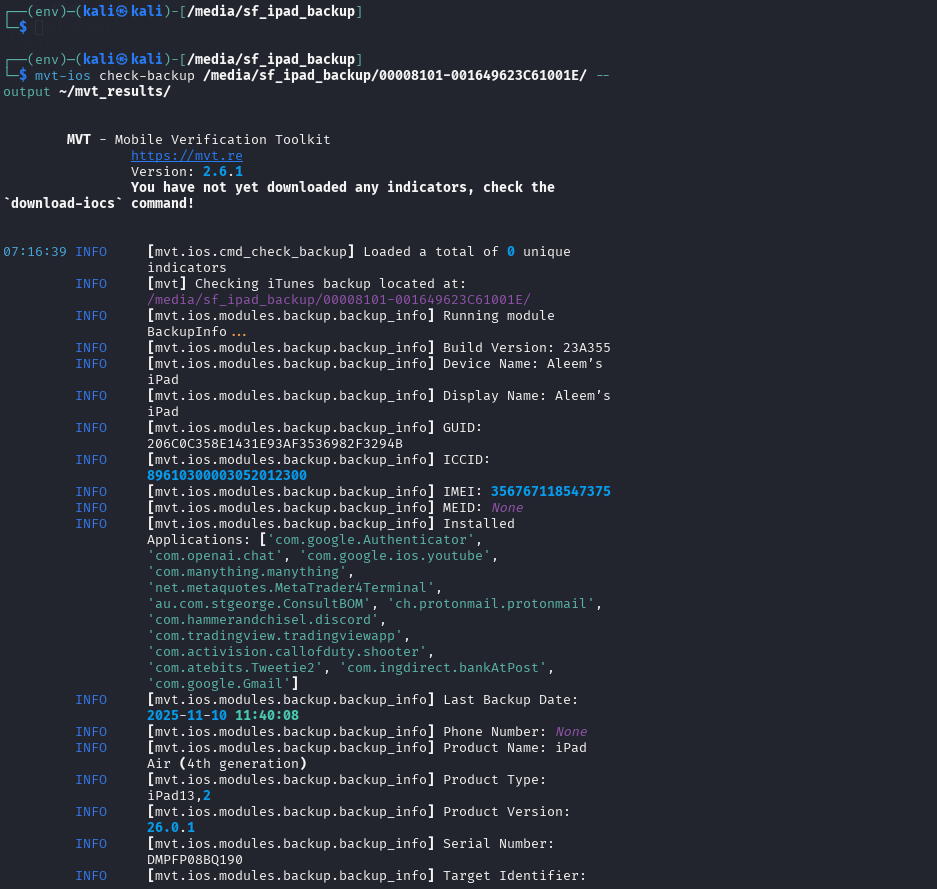
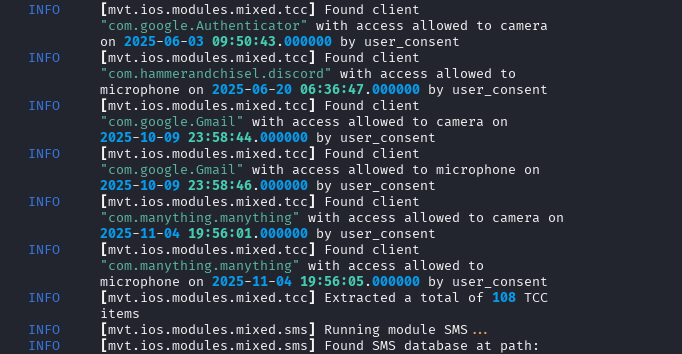
Real-World Example: My iPad Scan
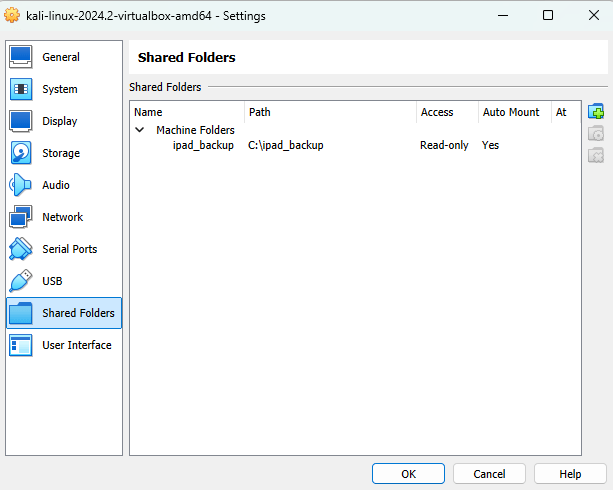
Here’s what I found scanning my own device:
bash
mvt-ios check-backup ./ipad_backup/ --output ./my_scan/ --iocs ./iocs/
Results:
- ✅ Clean: No known IOCs detected
- 📱 138 contacts in address book
- 🔍 13 installed apps (all legitimate)
- 📅 190 calendar events
- 🛡️ Normal permission patterns
Common Issues & Solutions
Problem: “ModuleNotFoundError: No module named ‘mvt’”
Solution: Virtual environment not activated
bash
source mvt-env/bin/activate
Problem: “Backup path does not exist”
Solution: Verify backup location and permissions
Problem: “Unable to decrypt backup”
Solution: Ensure you have the correct backup password
Problem: “No IOCs loaded”
Solution: Download IOCs first or use --iocs flag
Best Practices
- Regular Scans: Scan your device monthly
- Multiple IOCs: Use various threat intelligence sources
- Keep Updated: Regularly update MVT and IOCs
- False Positives: Investigate warnings before taking action
- Professional Help: Consult experts for serious concerns
When to Seek Professional Help
Contact digital forensics experts if you find:
- Confirmed malware detections
- Unexplained privileged access
- Signs of sophisticated spyware
- Critical business/personal impacts
Resources:
- Amnesty International Security Lab
- Local digital forensics firms
- Cybersecurity incident response teams
Conclusion
MVT is a powerful tool for maintaining mobile device security. While it can’t detect every possible threat, it provides excellent protection against known malware and spyware campaigns.
Remember: Regular scanning combined with good security hygiene is your best defense against mobile threats.
Additional Resources
- Official MVT Documentation
- Amnesty International Security Lab
- iOS Security Guide
- Mobile Forensics Community
Disclaimer: This guide is for educational purposes. Always ensure you have proper authorization before scanning devices you don’t own. MVT should be used as part of a comprehensive security strategy, not as the sole protection mechanism.

 SecCyberNet
Leave a comment